Create a backup account
Each member of D-MATH is provided with 100 GB of storage for backing up client data (laptop and/or desktop). The backup storage must be requested via:
https://backup.math.ethz.ch (use VPN if you are not on the ETH network)
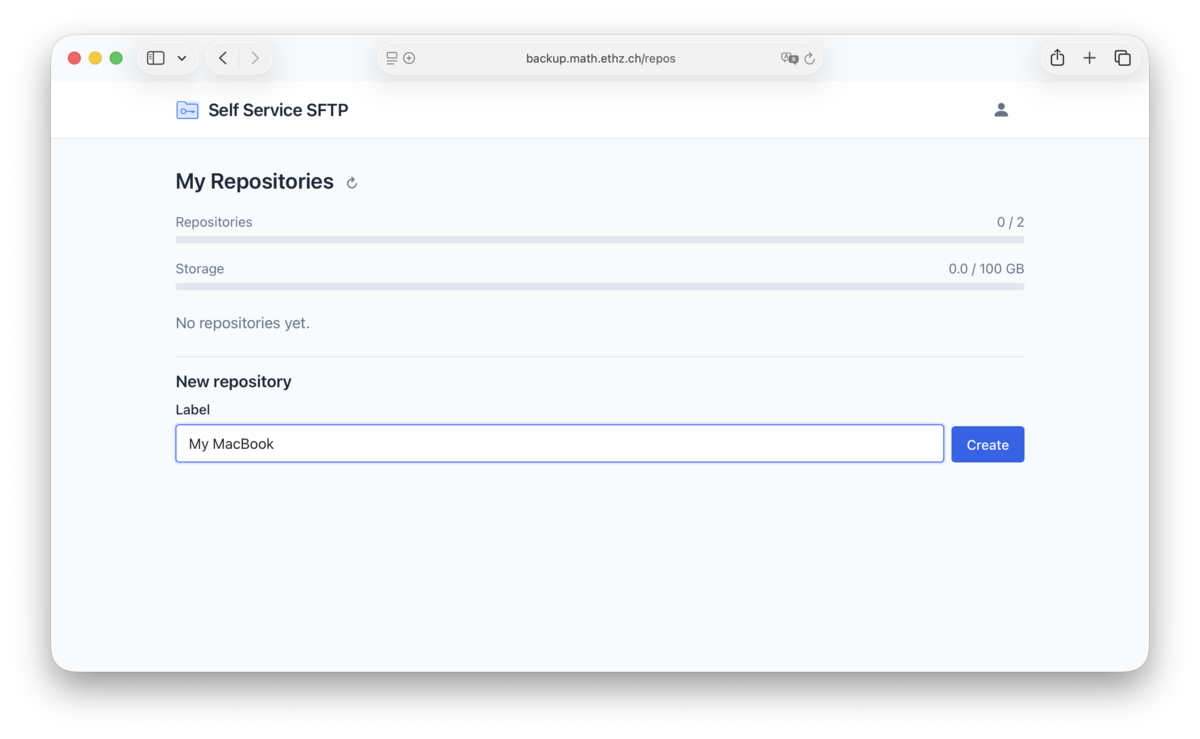
After logging in, set a label for your backup account and click “Create” :
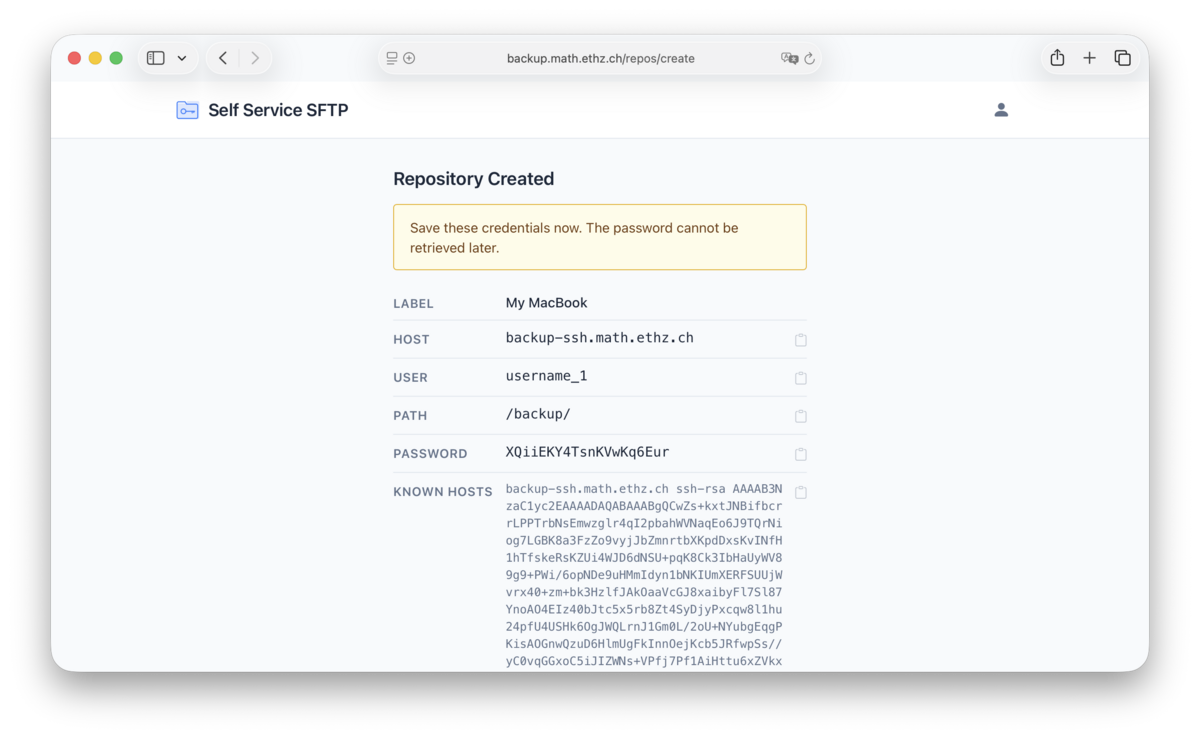
You will then see your backup account details. Save this information carefully, as you will need it to configure your backup client.
You can copy all fields using the icon on the right. ⚠️ Important: The password is displayed only once.
Note: The backup server is accessible worldwide via SFTP , so no VPN required.
Set up the backup client
Basically our backup server supports any backup client that works over SFTP. But we recommend Kopia, which is an open-source backup tool available for macOS, Linux, and Windows. Backups are stored encrypted on ETH (D-MATH) infrastructure (no external cloud services involved).
Install
On managed (by ISG D-MATH) macOS devices with an ARM processor, KopiaUI can be installed via the ETH Self Service App if it is not already present. On managed Linux systems running Fedora 42 or later, KopiaUI is preinstalled. For all other systems, please download KopiaUI from the official website (note: for Intel macOS you need to download the file KopiaUI-x.xx.x-mac.zip).
Connect to server
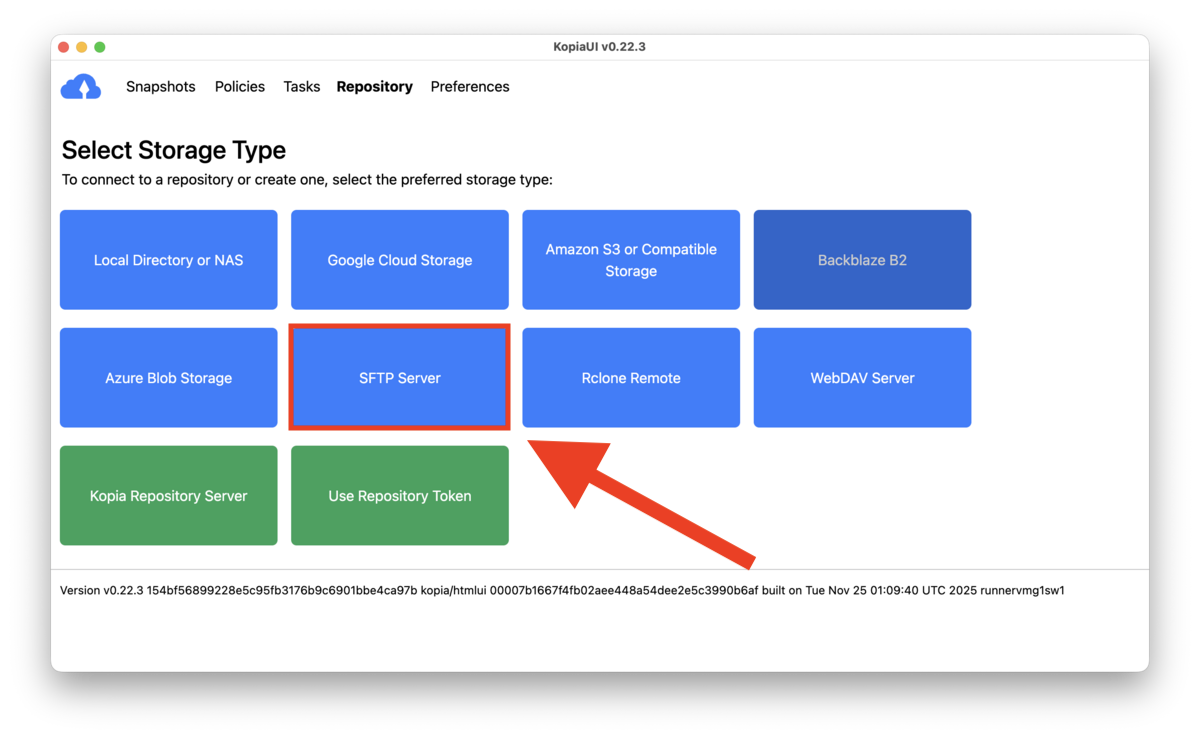
When starting KopiaUI for the first time, select “SFTP Server” :
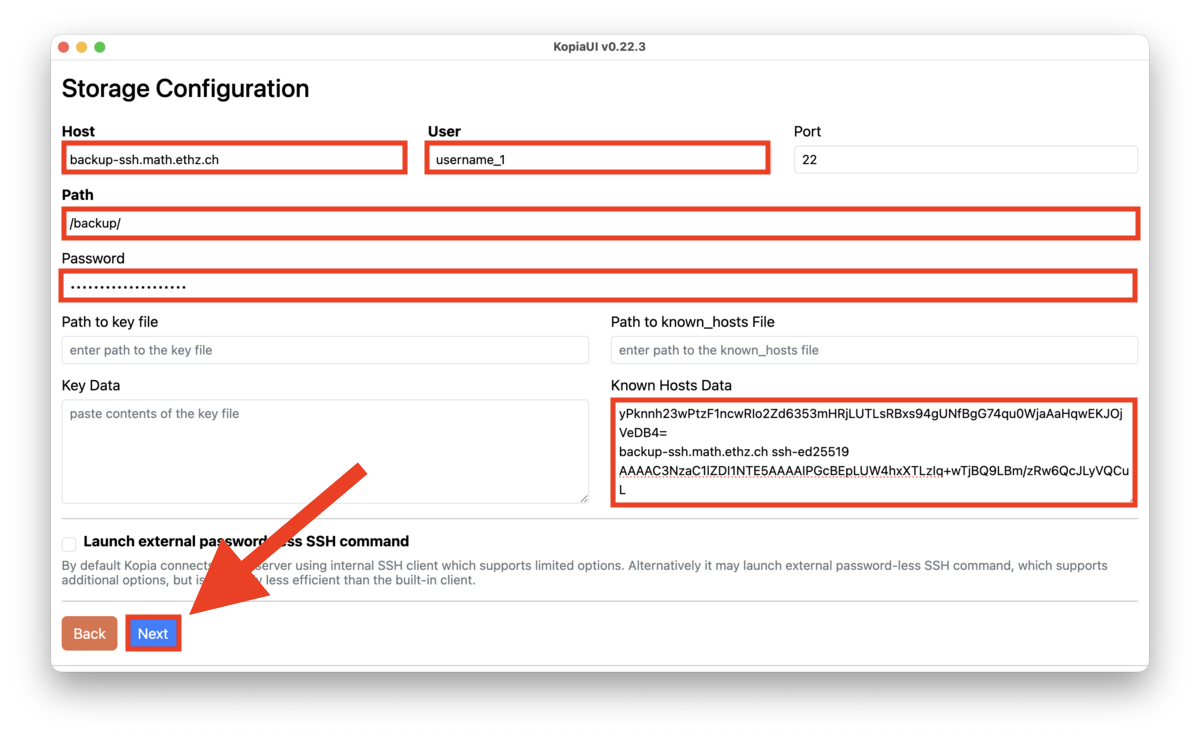
Enter the backup account details you created earlier and click “Next” :
Encryption password
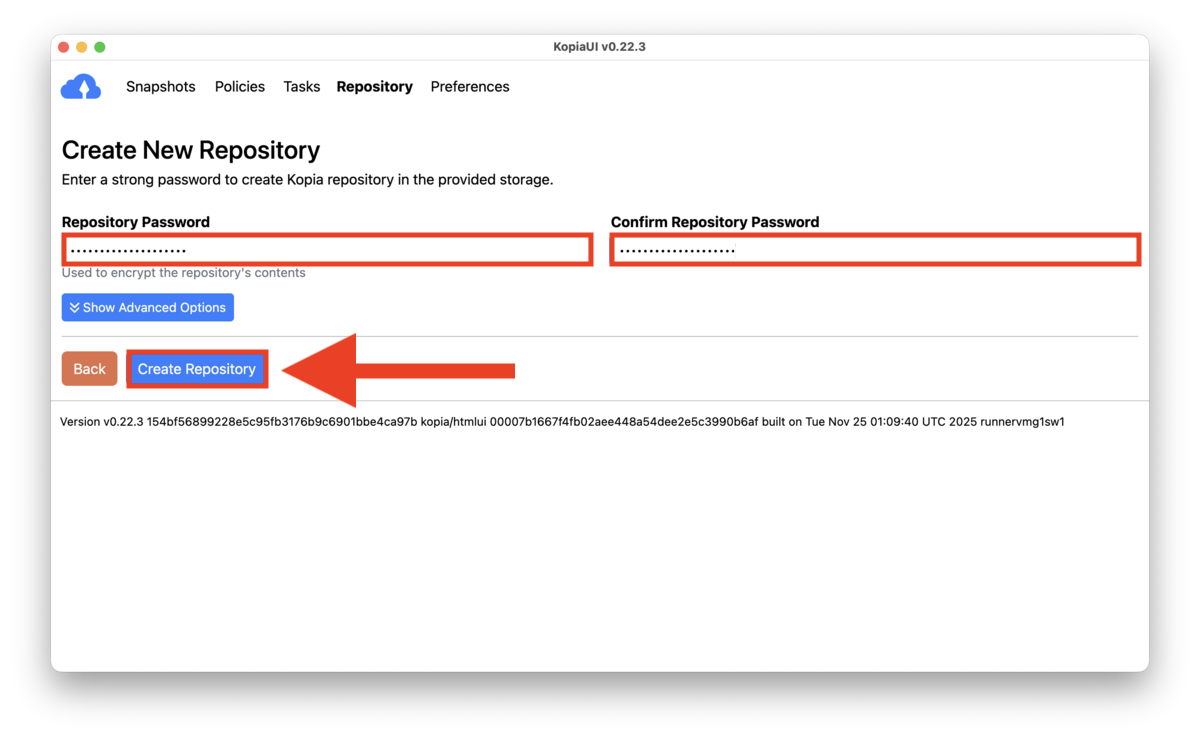
Next, define a repository password. This password is used to encrypt your backups on the server. Click “Create Repository” to continue.
⚠️ VERY IMPORTANT: If you lose this password, your backups cannot be restored , hence, save this password in your password manager!
Create backups (snapshots) and schedule
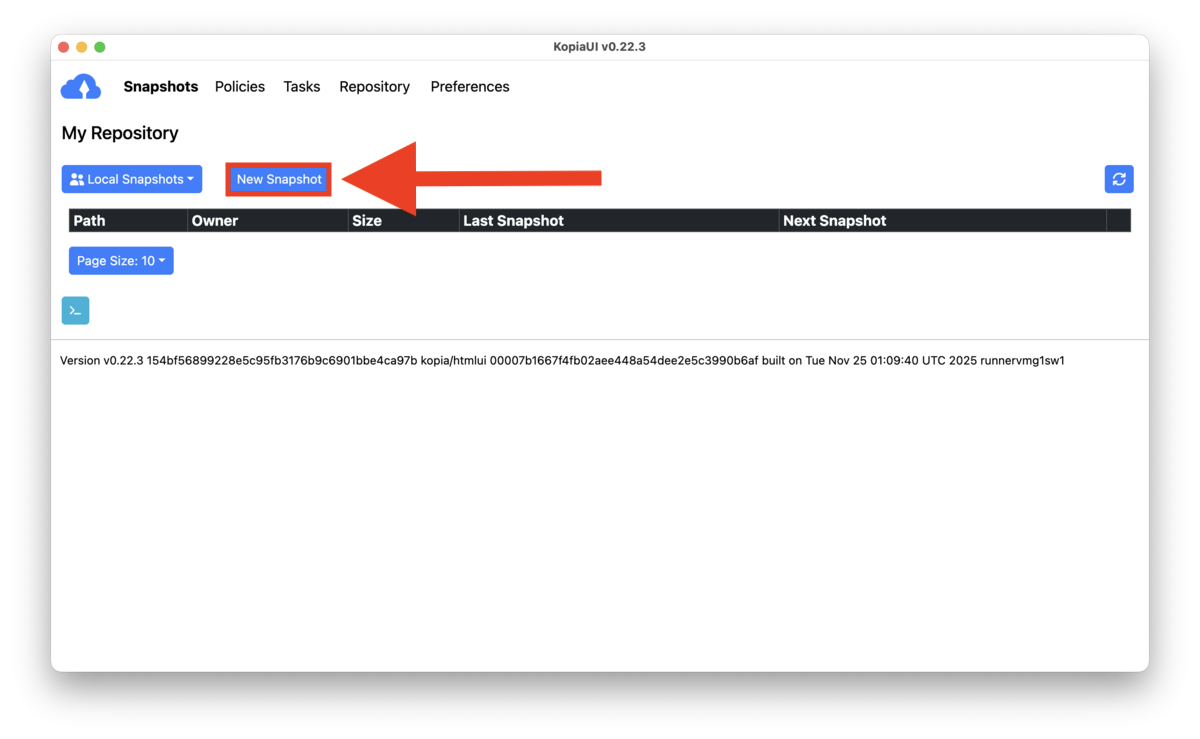
After creating the repository, you can start backing up your data by creating snapshots. Typically, you create one snapshot per directory. Click on “New Snapshot”:
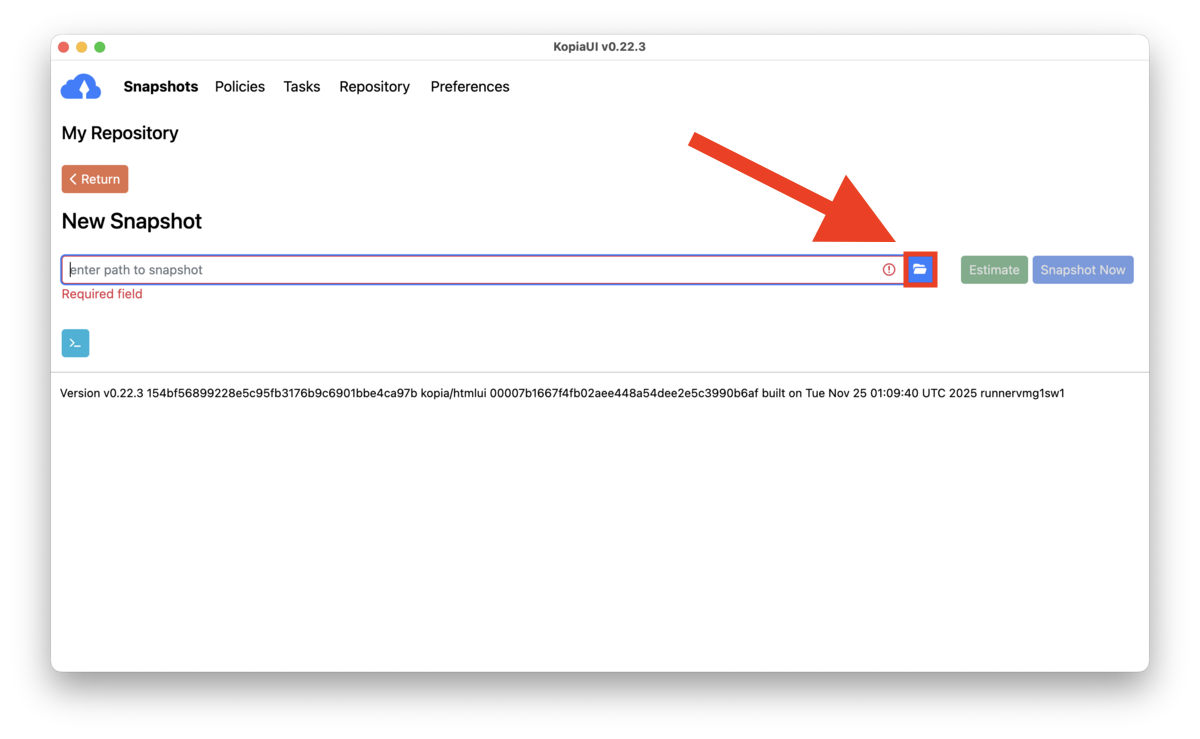
Click on the little “folder” icon, to browse and select a directory to backup:
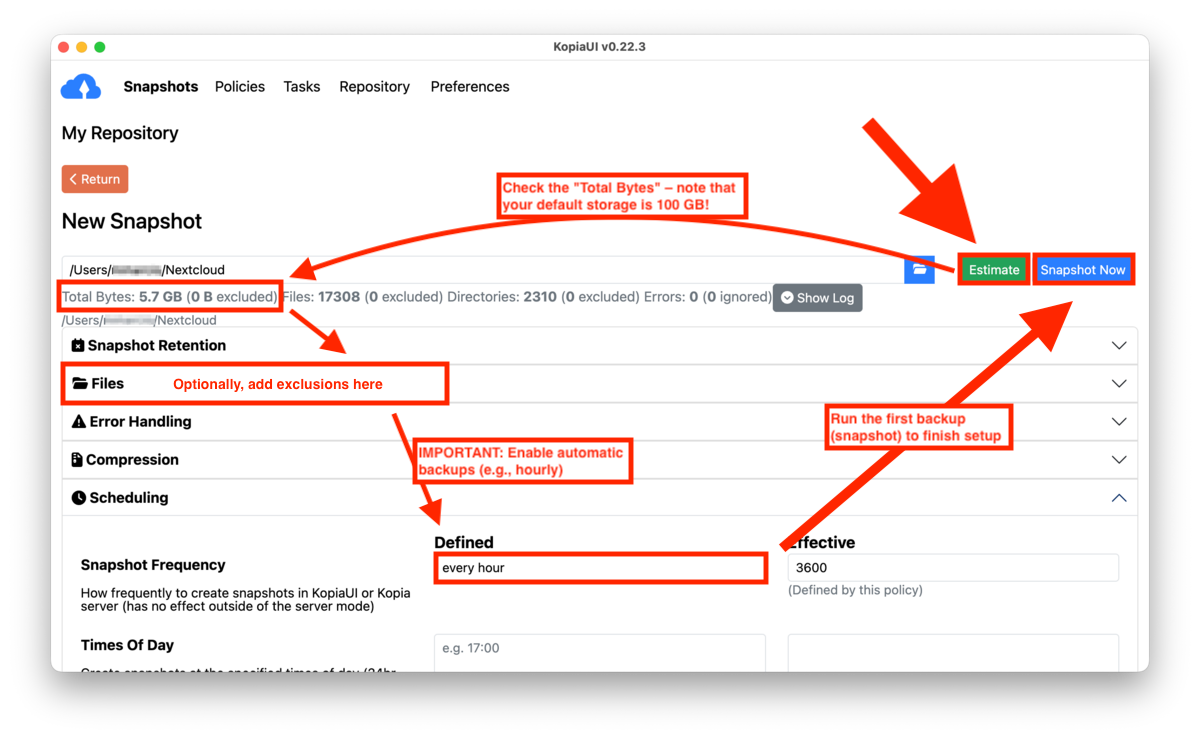
Then (see the next screenshot):
- click on “Estimate” to see how big the backup will be
- (optional) exclude some files/directories in the section “Files”, e.g. big data models
- important: in the section “Scheduling” set the desired snapshot (backup) frequency, e.g. “every hour”
- finish by clicking on “Snapshot Now” – this will do the first backup
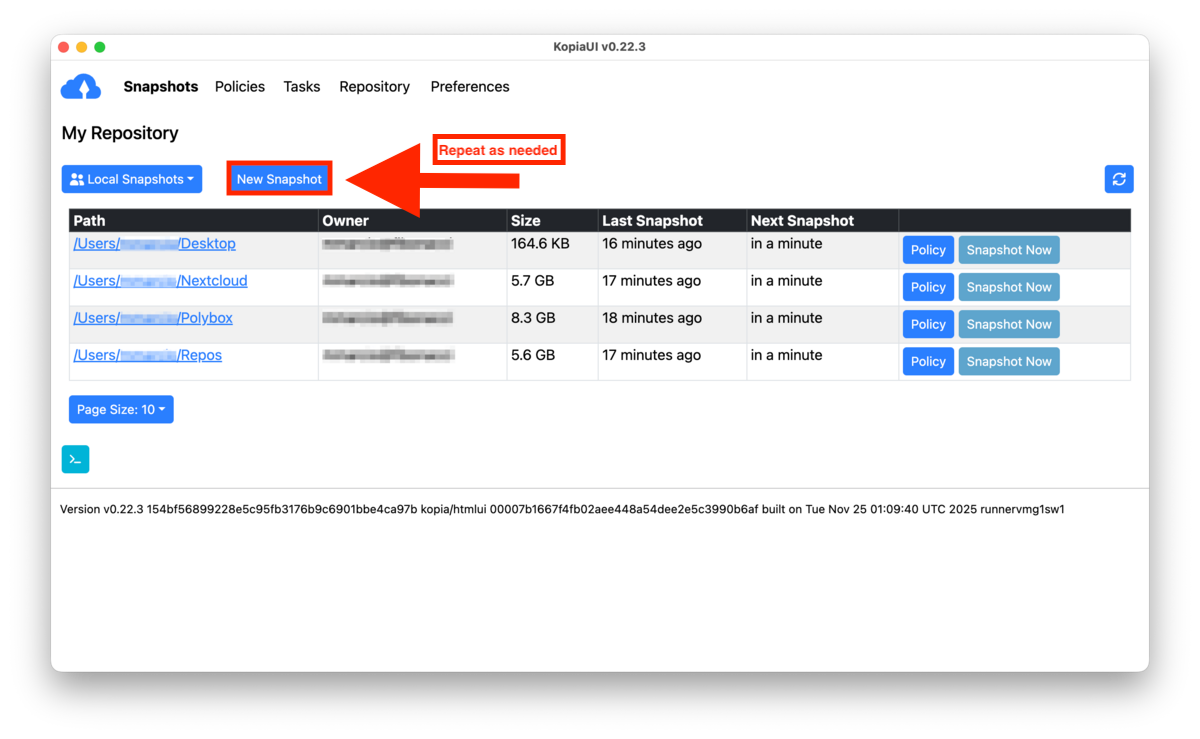
Repeat for all directories that you want to backup:
Autostart
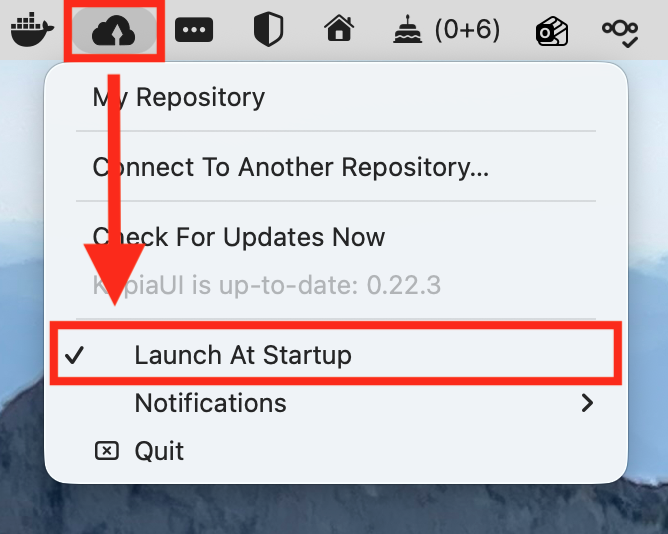
Ensure that KopiaUI starts automatically on login , so backups run regularly: