FreeFileSync is a folder comparison and synchronisation software that creates and manages backup copies of all your important files. Instead of copying every file every time, FreeFileSync determines the differences between a source and a target folder and transfers only the minimum amount of data needed. FreeFileSync is Open Source software, available for Windows, macOS, and Linux.
Installation
Download FreeFileSync here and follow the OS-specific instructions for the installation.
There are also a lot of video tutorials available on how to use this application, e.g. for synchronisation of two folders at: https://freefilesync.org/tutorials.php
Configuration
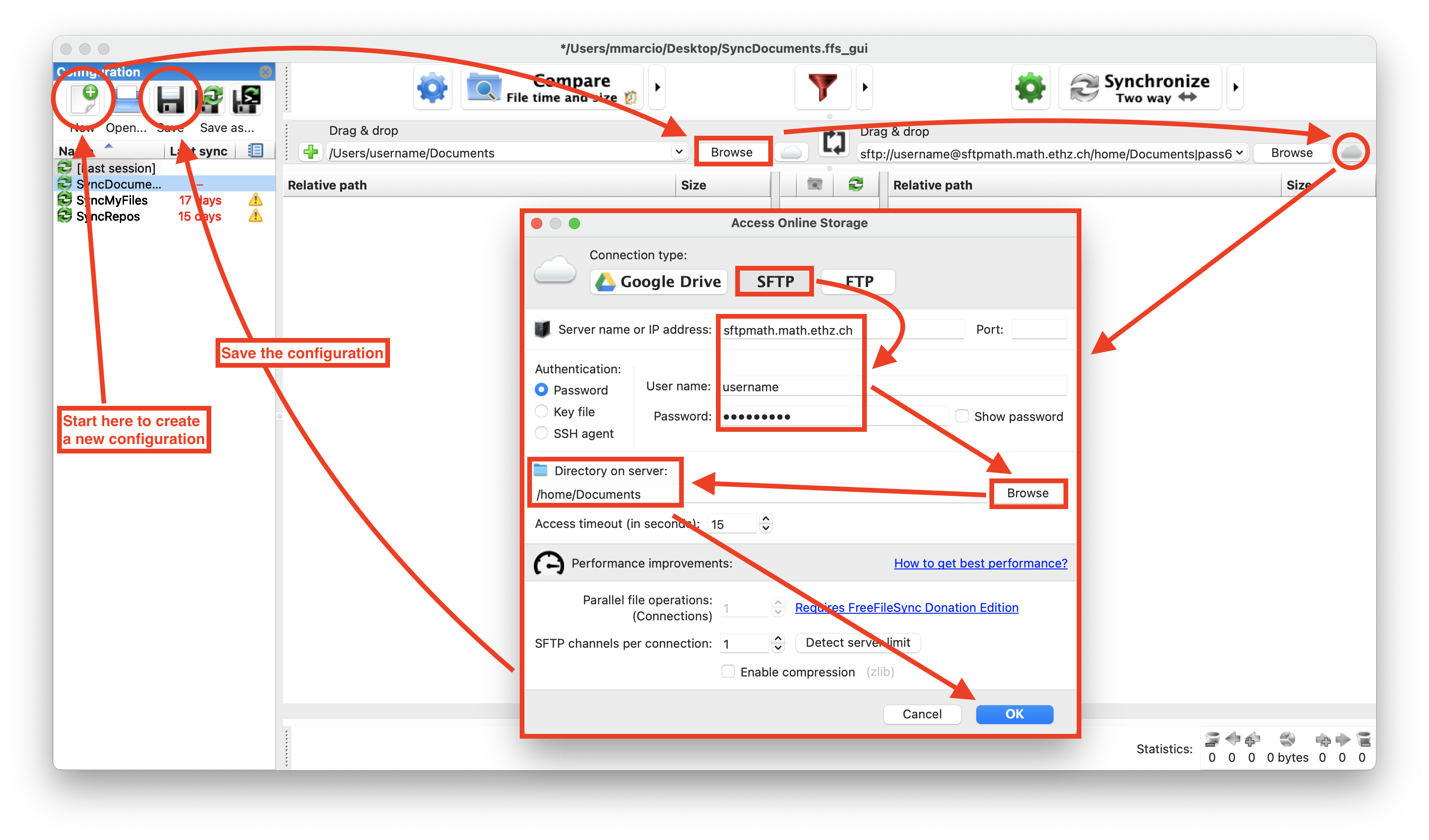
Let’s say that you want to synchronise your local folder “Documents” with your remote folder “Documents” in your home directory on the server. Then follow the following steps (and also see the illustration):
- click on “New”
- on left side click on “Browse” and select the (local) folder “Documents”
- on the right side click on the small cloud icon
- on the new window click on “SFTP” and enter the following information: – Server: sftpmath.math.ethz.ch – User name: your D-MATH username (= ETH username) – Password: your D-MATH password
- click on “Browse” and (if the credentials are correct) select the (remote) folder “home” and then “Documents”
- confirm by clicking on “OK”
- and finally save the configuration by clicking on “Save”
Minimal usage
Click on “Compare” to get the list of files that will be synchronised; for each file you will also see in which direction (local to remote or vice versa) it will be synchronised.
You can temporarily exclude file/directories from the synchronisation or change the direction of the synchronisation by clicking on the icons in the middle column.
Click on “Synchronise” to begin the synchronisation.
